Your report is due in an hour. The screen is a blinding white. Your brain feels like static. We’ve all been there. Now, imagine a savvy digital partner sitting next to you. It doesn’t just watch you struggle. It leans over and whispers, “Hey, I can draft that introduction based on your notes.”
Or, “Want me to find that sales data from last quarter and make a chart?” Or even, “Your team’s chat is a mess. Here’s a summary and three action items.” That partner? That’s Copilot.
So, what is Copilot? In the simplest terms, Copilot is an AI assistant. It’s like having a super-smart helper baked right into your computer and your favorite apps. The most famous one is Microsoft Copilot. Think of it as the brainy sidekick for your digital life. It’s not a single thing.
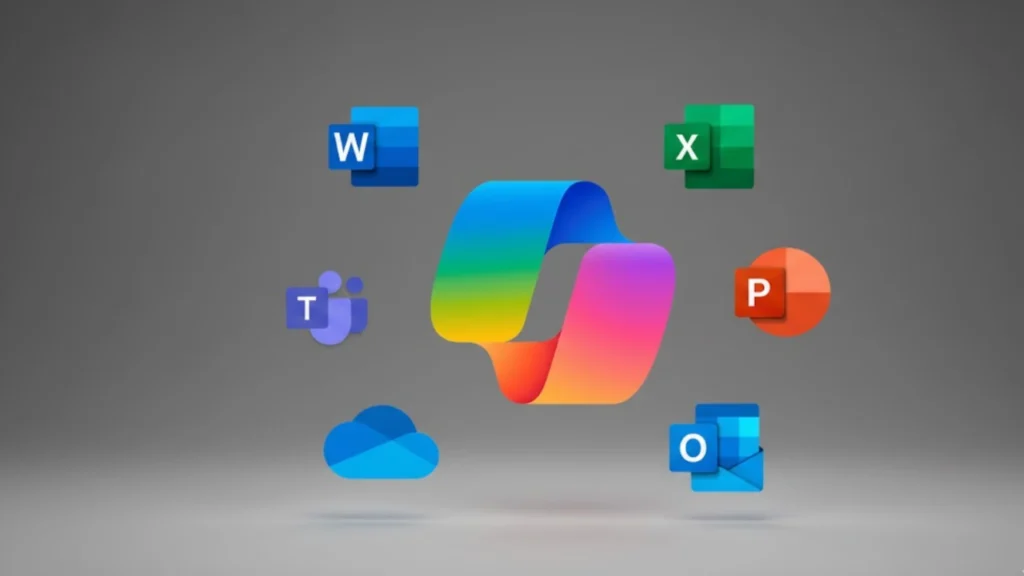
It’s a family of smart tools designed for different jobs. There’s Copilot for Windows living in your taskbar. There’s Copilot in Microsoft 365 (Word, Excel, PowerPoint, Outlook, Teams). There’s a Copilot chatbot in Edge and Bing. It’s everywhere Microsoft is.
But it’s not magic. It’s machine learning. It reads, writes, analyzes, and creates based on what you ask and what it knows. It isn’t science fiction anymore. It’s the tool your coworker is using to finish presentations in half the time. Let’s peel back the layers.
Copilot Meaning: More Than Just a Fancy Name
The name is the clue. In an airplane, the copilot doesn’t fly the plane alone. They assist the pilot. They handle systems, double-check calculations, and suggest courses. The pilot is still in command. That’s the Copilot definition. You are the pilot. The AI is your copilot.
It’s not here to replace you. It’s here to handle the tedious bits. The grinding parts of work that suck your time and energy. Formatting a 50-page document and analyzing thousands of rows in Excel to find a trend, and turning a bullet-point list into a smooth email.
This assistant takes your commands—”make this document more professional,” “create a project timeline,” “write a catchy headline”—and does the heavy lifting. You guide. It creates. You edit. It refines.
Forget the idea of a robot taking over. Think of it as finally having the intern of your dreams. One that never sleeps, never gets bored, and knows almost everything on the internet and your company files (with permission, of course). The meaning of Copilot is partnership—a messy, sometimes imperfect, but incredibly powerful human-AI collaboration.
How Does Copilot Work? The Engine Under the Hood
You don’t need to be a computer scientist. But knowing the basics helps. How does Copilot work? It runs on large language models (LLMs). Think of an LLM as a brain trained on a gigantic library of text and code—books, articles, websites, programming manuals. Microsoft’s key model is called GPT-4, created by OpenAI.
When you type “summarize this meeting transcript,” here’s what happens:
- Your Prompt: You give the command. It is called “prompting.”
- The Processing: Copilot sends your prompt to its AI model. The model scrambles through its vast training, understanding the patterns of language. It doesn’t “know” facts like a database. It predicts the most likely, helpful sequence of words for your request.
- Grounding (The Secret Sauce): This is where it gets smart. If you’re in Copilot in Word, it doesn’t just give a generic summary. It reads your specific document. It “grounds” its response in your content. In Copilot for business, it can search your company’s SharePoint files and emails to give answers based on your work, not just the public internet.
- The Response: It generates text, code, or analysis right there in your app. You can accept it, tweak it, or tell it to try again.
It’s a prediction, not a thought. But when the prediction is this good, it feels like magic. The key is context. The Copilot in your Excel knows it’s working on a spreadsheet. The one in Teams knows it’s in a business chat. That context is everything.
Microsoft Copilot in the Wild: Where You Actually Use It
It is where rubber meets the road. What can Copilot do? Let’s tour the digital office.
- Copilot in Word: Staring at a blank page? Tell it to “draft a two-page project proposal based on my notes.” It will. Have a clumsy paragraph? Highlight it and say, “rewrite this more concisely.” It turns you from a writer into an editor.
- Copilot in Excel: This is a game-changer. Ask it, “what are the key trends in this sales data?” It will analyze and spit out insights. “Create a pivot table showing regional performance.” Done. It demystifies data analysis.
- Copilot in PowerPoint: Give it an outline or a Word doc and say, “make a slide deck.” It designs the slides, picks visuals, and writes speaker notes. You then make it yours.
- Copilot in Outlook: Dreading inbox zero? It can summarize long email threads instantly. It can also draft replies. “Write a polite response declining the meeting and suggest two alternative times.” Click. Sent.
- Copilot in Teams: During a live meeting, it can provide real-time captions and a transcript. After, ask it: “What were the main decisions? Who was assigned action items?” It creates the meeting minutes for you.
- Copilot in Windows 11: Hit Win+C. Your sidekick appears. Need to change a system setting quickly? Ask it. Want to know what’s on your screen? Use the “See what’s on my screen” feature. It’s your PC’s command center.
- Copilot in Edge & Bing: Surfing the web? Highlight text and ask for an explanation. Shopping? Ask it to compare products across tabs. It’s your research buddy.
The through-line? Offloading cognitive grunt work. It’s conversion optimization for your brain—turning your raw ideas into polished output faster.
The Great Debate: Copilot vs ChatGPT
Everyone asks: Copilot vs ChatGPT, what’s the difference? It’s like comparing a Swiss Army knife to a chef’s knife.
ChatGPT (especially the free version) is the chef’s knife. It’s a brilliant, general-purpose tool. You can chat with it about philosophy, get poem ideas, or draft a basic email. But it’s a separate website or app. It lives outside your work. It doesn’t natively know your files, your emails, or your company data unless you paste it in.
Microsoft Copilot is the Swiss Army knife. It has a blade (the same GPT-4 brain), but it also has a screwdriver, a can opener, and a file. It’s integrated. The Copilot in Microsoft 365 is inside the apps you use all day. Its superpower is context. It works with your documents, your spreadsheets, and your calendar. For work, this integration is everything.
Think of it this way:
- Use ChatGPT for brainstorming, creative writing, or general Q&A.
- Use Microsoft Copilot for actually doing your job inside Microsoft’s ecosystem.
One isn’t better. They’re for different tasks. But if your world runs on Microsoft, Copilot is the one that feels like it’s actually on your team.
The Money Question: Is Copilot Free? Pricing Explained.
Alright, the wallet check. Is Copilot free? Yes and no. It’s a tiered system.
- The Free Tier: There is a free Copilot experience. It is the Copilot chatbot available at copilot.microsoft.com or in the Bing/Edge browser. It’s powered by GPT-4 and is great for general queries, image creation with DALL-E 3, and web searches. It’s a solid taste.
- Copilot Pro: For $20 per user per month, you get the turbo boost. Copilot Pro gives you priority access during peak times (faster responses), the ability to create custom GPTs, and most crucially, access to Copilot in Microsoft 365 apps (Word, Excel, etc.). It is for individuals who want the full power in Office.
- Copilot for Business & Enterprise: This is where it gets serious. Copilot for business starts at $30 per user per month. It includes everything in Pro, plus enterprise-grade security, management controls, and the groundbreaking “grounding” in your company’s data. It can answer questions based on your internal files, emails, and chats. Copilot for enterprise adds advanced security and compliance features for large organizations.
Pricing summary: Want to play with the AI? The free version is great. Want it to supercharge your personal Office apps? Get Copilot Pro. Is your company rolling it out to transform productivity? That’s Copilot for Business.
Security, Privacy, and the Elephant in the Room
Let’s be real. Letting an AI read your emails and documents feels… spooky. Copilot security and privacy are the biggest questions for companies.
Microsoft is shouting about this. Their stance is “Your data is your data.” Here’s the gritty detail:
- Your prompts and outputs are not used to train the public AI models. What happens in your company stays in your company.
- Commercial data protection: For business plans, your data is isolated. It’s not shared across tenants.
- Compliance: It’s built to meet standards like GDPR, SOC 2, and more.
- You are in control: IT admins can set policies on what data Copilot can access.
Is it 100% risk-free? No technology is. There’s always a human factor—someone might ask it to generate something inappropriate. But the walls Microsoft is building are high and strong. For most businesses, the bigger risk might be not using it and falling behind. It is where brand storytelling meets hard tech. Trust is the currency.
Your New Reality: Getting Started with Copilot
So, this is happening. It’s on your Windows 11 PC. Your company might be rolling it out. What now?
First, lose the fear. Start small. Next time you’re in Word, look for the Copilot icon (it looks like a ribbon/wing). Click it. Try something easy.
- “Make this list into three bullet points.”
- “Give me five title ideas for this document.”
- In Outlook: “Summarize this email thread for me.”
Embrace the awkwardness. Sometimes it will get it wrong. That’s okay. You’ll learn to write better prompts. That’s the new skill—not memorizing software menus, but clearly communicating with your AI assistant. It’s conversion optimization for your ideas. Turning your fuzzy thoughts into clear commands that the machine understands.
The future of work isn’t about being replaced by robots. It’s about people who use robots—smart assistants like Copilot—getting more done, faster, and with less stress. The pilot is still you. You just got a much better copilot.
Google-Optimized FAQs
1. Is Microsoft Copilot the same as ChatGPT?
No, but they’re cousins. They use similar AI technology (like GPT-4), but Microsoft Copilot is deeply integrated into Windows, Edge, and Microsoft 365 apps. ChatGPT is a standalone chatbot. Copilot is designed to work directly with your files and data.
2. What is the difference between Copilot and Copilot Pro?
The free Copilot is a capable chatbot. Copilot Pro is a $20/month subscription that gives you priority access, advanced image creation, and most importantly, access to Copilot in Microsoft 365 apps like Word, Excel, and PowerPoint on your personal accounts.
3. Can Copilot read all my company files?
In Copilot for Business and Enterprise, it can only access files and data you already have permission to see. It follows your company’s existing security rules. It doesn’t get special access to every file in the organization.
4. Do I need a Microsoft 365 subscription to use Copilot?
To use Copilot in Microsoft 365 apps (Word, Excel, etc.), you need a Microsoft 365 subscription and a Copilot Pro or Copilot for Business add-on license. The standalone Copilot chatbot is free and does not require Microsoft 365.
5. How do I activate Copilot in Windows 11?
Look for the Copilot icon on your taskbar—it looks like a blue ribbon/sparkle. Click it, and a sidebar will open. If you don’t see it, ensure your Windows 11 is fully updated to the latest version (23H2 or later).
Read More: What is Decentralized AI